Val 🏳️‍⚧️

Publicaciones

Últimas publicaciones de Val

from Val 🏳️‍⚧️

Hace cosa de tres semanas, decidí ponerme a prueba e instalar Gentoo Linux en mi computadora tras años de usar Arch Linux, y decidí hacer el cambio tanto por los problemas del AUR (que no debería de preocupar tanto si revisas bien los PKGBUILDs para no instalar nada malicioso), como porque ya me estaba aburriendo.

Y el hecho de que no estuvieran un par de paquetes que usaba en Arch, realmente terminó siendo el menor de mis problemas. Les cuento.

La instalación del sistema base realmente es bastante sencilla, siguiendo el Handbook e instalando el kernel completo sin modificar. Los problemas comenzaron cuando descubrí los overlays, y cómo habilitarlos. Terminé habilitando el de KDE sin darme cuenta de que era el de Testing, y terminé rompiendo el sistema, y tuve qué pasar por dos reinstalaciones más para darme cuenta de lo que estaba saliendo mal, deshabilitar el repositorio de KDE testing, y reparar el sistema para no pasar por una cuarta instalación.

Y la verdad es que también la forma en que el repositorio oficial de Gentoo maneja los paquetes estables y los de prueba (que creo que la mayoría que son de prueba son más bien bleeding edge, si me preguntan), y las banderas de uso. Lo describen muy por encimita en el handbook, pero no es hasta que algún paquete no tiene una característica que necesitas que realmente toma relevancia. Y la verdad, tanto el índice de Gentoo Portage Overlays como el comando equery uses se convirtieron en mis mayores aliados.

Algo que realmente eché en falta es un gestor gráfico de paquetes, porque siempre que he usado Linux, he usado alguno. Synaptic en Mint, Ubuntu y Debian, Pamac y Shelly en Arch, y la verdad es que no recuerdo si usé alguno en Fedora, porque no lo usé mucho tiempo. Técnicamente hay dos disponibles en Gentoo, pero Kuroo ni siquiera logro que inicie, y AppSwipe no me parece tan completo como para querer conservarlo. Así que me quedo con la línea de comandos.

Pero ya después de haber instalado las aplicaciones del sistema, habilitar características de WiFi, Bluetooth e impresión, y configurar uno que otro programa que uso (como GIMP para las traducciones, y OneDriveGUI para mis respaldos, entre otros), algunos paquetes de iconos y temas que uso no estaban disponibles ni en el repositorio oficial de Gentoo, ni en ninguno de los overlays del sitio mencionado arriba. Lo que me llevó a meterme a otro agujero de conejo. Cómo funcionan los ebuilds.

Lo sencillo hubiera sido simplemente ir a los repositorios de esas cosas de personalización, compilarlos sólo para mí y seguir con mi día. Pero dije, «¿y si lo pongo en un overlay para compartirlo luego?» Y eso terminé haciendo, pero crear los ebuilds y el repositorio no fue tan sencillo. En primera instancia, quise hacer un subdominio de este servidor para hacer el repositorio ahí, pero descubrí que no es sencillo hacer un repositorio HTTPS, irónicamente. Quise convertirlo a git en ese mismo subdominio, y tampoco pude hacerlo. Me rendí, y lo comencé en una cuenta de GitHub que ya tenía (alguien dígame cómo me mudo a Gitlab xd).

A decir verdad, el primer ebuild que hice fue el de Handheld Daemon para mi ROG XBOX Ally X, porque realmente lo necesito para tener compatibilidad del control integrado con aplicaciones fuera de Steam, ya que el kernel de CachyOS no me sirvió para eso, y el kernel de Xanmod (que me parece mejor) todavía no incluye el módulo.

Después me fui como hilo de media, e hice ebuilds para tipografías, temas, iconos y una terminal con soporte touch, y en eso he estado trabajando esta última semana. Sigue siendo un repositorio bastante pequeño, pero no lo pienso dejar así. Eventualmente quiero portear algunos paquetes del AUR (de los que no traen problemas xd), y poner a disponibilidad algunas aplicaciones de Maui, porque me parecen interesantes.

Dicho esto, realmente no estoy escribiendo ninguna línea de código para los proyectos que estoy haciendo ebuilds. Sólo soy una especie de mantenedora con aires de grandeza, pero lo hice con amor y muchísimo café.

Si quieren darle un vistazo al repositorio, está en Github, y lo pueden agregar desde eselect.

sudo eselect repository add val-vgms git https://github.com/val-vgms/gentoo-overlay.git

Y ahora... Nada. Me voy a dormir. Le sigo con esto otro día, supongo.

 
Leer más...

from Val 🏳️‍⚧️ (En)

About three weeks ago, I decided to test myself and install Gentoo Linux on my computer after years of using Arch Linux, and I decided to switch because of both the AUR issues (which shouldn't be that worrisome if you carefully review the PKGBUILDs to not insall anything malicious) and I was getting bored.

And the fact that some packages I used on Arch weren't there was really the lesser of my troubles. Lemme tell ya.

The base system installation in reality is pretty easy, following the Handbook and installing the full kernel without modifying it. The issues started when I discovered the overlays and how to enable them. I ended up enabling the KDE one without realizing it was the Testing one, and I ended up breaking my system, and I went through two reinstalls to realize what was I doing wrong, disabling the KDE testing repository, and fix the system to not go through a fourth reinstall.

And the truth is that the way the official Gentoo repository handles the stable and the testing packages (which I think most testing packages are more bleeding edge, if you ask me), and the use flags. They're described in little detail in the handbook, but it's not until a package doesn0t have a feature you need that they start to really matter. And to say the truth, both the Gentoo Portage Overlays index and the command equery uses became my greatest allies.

Something I really missed was a graphical package manager, because every time I have used Linux, I have used one. Synaptic on Mint, Ubuntu and Debian, Pamac and Shelly on Arch, and honestly I don't remember ever using one on Fedora, because I didn't use it for a long time. Technically there are two available on Gentoo, but I couldn't even make Kuroo start, and AppSwipe doesn't seem very complete to me to want to keep it. So I'll stay with the command line.

But after installing system apps, enabling WiFi, Bluetooth, and printing features, and configuring some programs I use (like GIMP for translations, and OneDriveGUI for my backups, among others), some icon packs and themes I use weren't available either on the Gentoo official repository, or any on the overlays from the aforementioned website. Which led me to another rabbit hole. How ebuilds work.

The easy way would have been just simply going to those original customization projects, complie them just for me and go on my way. But I said, «what if I put it on an overlay to share it later?» And that's what I ended up doing, but making the ebuilds and creating the repository wasn't that easy. At first, I wanted to make a subdomain of this server to host the repository there, but I discovered it's not very easy to create an HTTPS repo, ironically. I wanted to convert it to git on that same subdomain, and I couldn't do it either. I gave up, and I started it on a GitHub account I already had (someone tell me how to move to Gitlab xd).

To say the truth, the first ebuild I did was Handheld Daemon for my ROG XBOX Ally X, because I really need it for compatibility with the embedded controller in apps outside of Steam, because the CachyOS kernel wasn't useful for that, and the Xanmod kernel (which I think it's better) doesn't include the module yet.

After that, I just kept going, and made ebuilds for typefaces, themes, icons, and a terminal with touch support, and I've been working on that this last week. It's still a small repository, but I don't plan on leave it like that. I eventually want to port some AUR packages (those without issues xd), and make some Maui apps available because I think they're neat.

That said, I am not writting any line of code for those projects I'm making ebuilds for. I'm just kind of a maintainer with a superiority complex, but I did it with love and lots of coffee.

If you want to check the repository, it's on Github, and you can add it from eselect.

sudo eselect repository add val-vgms git https://github.com/val-vgms/gentoo-overlay.git

And now... Nothing. Imma sleep. I'll work on this another day, I guess.

 
Read more...

from Val 🏳️‍⚧️ (En)

I still believe WriteFreely is a good blogging platform, but has had a very serious security issue in all of its versions before the launch of version 0.17 where it was fixed, that allowed account creation even with closed registration.

And me, as several instances, was affected with the creation of 3,434 users in a very short time, with posts promoting gambling platforms with rather questionable content. Simple scams, dude.

I didn't even waited to translate the interface files for the new version to update my instance, to avoid further account creation. And even though a batch user management tool from the command line is already in the works, it's not included in the new version. And the Admin dashboard still doesn't batch user management. And honestly, I'm too lazy to go user by user to delete them.

Fortunately, we can still use semiautomatic tools to at least do it in the least possible time. Unfortunately, I only tested this fix on Linux, so I don't know if it works for Mac, and definitely will need to be adapted to Windows. Although if you followed my WriteFreely installation tutorial, following this fix is pretty straightforward.

The first thing we need to do is getting a list of recently created users, and save it in a text file. For that, let's run this command in the terminal.

mariadb -u writefreely -p -e "SELECT username FROM users ORDER BY created DESC" writefreely > users.txt

And it will ask for the WriteFreely admin password from when you created your instance. You better have it saved somewhere.

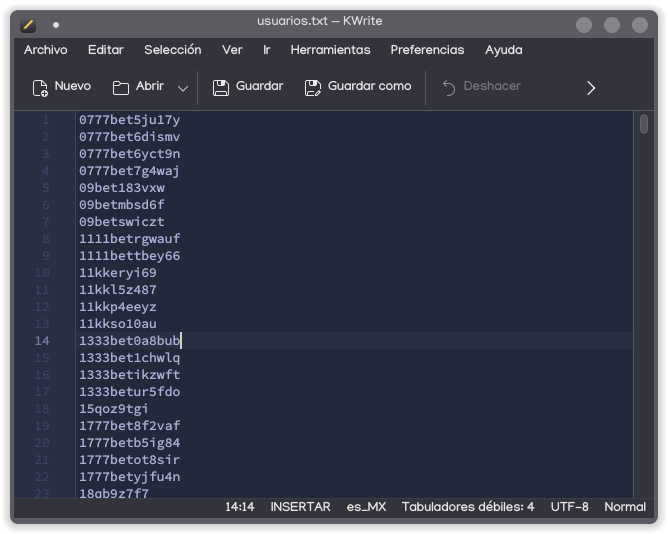
Now, on the text file, the usernames will be stored, one by line.

Screenshot of KWrite, showing a text file with several lines with random characters

This file needs to be refined, deleting the usernames we do want to keep. As this security breach is somewhat recent, we will focus on the first lines because, conveniently, the users will be sorted from newest to oldest. And if your instance is only for you (such as mine, because I only have users for the blog in English and in Spanish), even easier.

Once you make your corrections, move the file to where the WriteFreely executable is located.

mv users.txt /var/www/html/writefreely/

Now, we will create a small script to automatize user deletion confirmation, because by default, the command is only interactive.

nano delete.sh

Inside, we'll enter the following lines:

#!/bin/bash

echo "Deleting user $1"
echo 'y' | ./writefreely user d $1

Press [Ctrl] + [S] to save immediately, and [Ctrl] + [X] to exit.

Finaly, let's run this command to delete these bothersome users once and for all.

for user in $(cat users.txt); do ./delete.sh $user; done

By running this command, all users listed on the text file will be deleted. So it's recommended to review the file before running the command, as it's irreversible once it has started.

And... that's it. We have finished. With this, we now have cleaned our instance.

And as I don't have anything else to say... I'm out.


Update July 20th, 2026: A new patch was released with version 0.17.1, so this fix is not really neede anymore. But I still leave this here because I spent a lot of time writing this article for me to send it to oblivion xd

 
Read more...

from Val 🏳️‍⚧️

Sigo creyendo que WriteFreely es una buena plataforma de blogs, pero ha tenido un problema bastante grave de seguridad en todas sus versiones hasta el lanzamiento de la 0.17 donde se corrigió, que permitía crear cuentas aunque tu registro estuviera cerrado.

Y yo, como muchas otras instancias, salí afectada con la creación de 3,434 usuarios creados en muy poco tiempo, con publicaciones promocionando plataformas de apuestas con contenido más bien cuestionable. Simples estafas, vaya.

Ni siquiera me quise esperar a traducir los archivos de la interfaz de la nueva versión para actualizar mi instancia, para evitar que siguieran saliendo más cuentas. Y aunque ya se trabaja en una herramienta para la gestión masiva de usuarios desde la línea de comandos, no alcanzó a llegar a la nueva versión. Y la interfaz de administración tampoco permite la administración masiva de usuarios. Y honestamente, qué flojera estar yendo usuario por usuario para estarlos borrando.

Por fortuna, aún podemos utilizar herramientas semiautomatizadas para al menos hacerlo en el menor tiempo posible. Por desgracia, sólo probé esta solución en Linux, así que desconozco si funcione para Mac, y definitivamente tendría qué adaptarse para Windows. Aunque si seguiste mi tutorial de instalación de WriteFreely, seguir con este fix es bastante directo.

Lo primero que tenemos qué hacer es obtener la lista de usuarios creados recientemente, y guardarlo en un archivo de texto. Para ello, ejecutamos el siguiente comando en la terminal.

mariadb -u writefreely -p -e "SELECT username FROM users ORDER BY created DESC" writefreely > usuarios.txt

Y nos pedirá la contraseña de la administración de WriteFreely de cuando creaste tu instancia. Más te vale haberla guardado.

Ahora, en el archivo de texto, estarán ordenados los nombres de usuario, uno por cada línea.

Captura de pantalla de KWrite, mostrando un archivo de texto con varias líneas con caracteres aleatorios

Este archivo se tiene qué refinar, eliminando los nombres de usuario que quieres conservar. Como este problema de seguridad es más bien reciente, nos enfocaremos en las primeras líneas, ya que, convenientemente, los usuarios están ordenados desde el más nuevo al más antiguo. Y si tu instancia es sólo para ti (como es mi caso, ya que solo tengo los usuarios del blog en español y en inglés), más sencillo aún.

Una vez hechas tus correcciones, mueve el archivo hasta donde se encuentra el ejecutable de WriteFreely.

mv usuarios.txt /var/www/html/writefreely/

Ahora, crearemos un pequeño script para automatizar la confirmación del borrado de usuarios, ya que por defecto, el comando es interactivo sí o sí.

nano borrar.sh

Dentro, introducimos las siguientes líneas:

#!/bin/bash

echo "Eliminando usuario $1"
echo 'y' | ./writefreely user d $1

Presionamos [Ctrl] + [S] para guardar inmediatamente, y [Ctrl] + [X] para salir.

Finalmente, vamos a ejecutar el comando para eliminar de una vez por todas a esos usuarios molestos.

for usuario in $(cat usuarios.txt); do ./borrar.sh $usuario; done

Al ejecutar este comando, se irán borrando todos los usuarios listados en el archivo de texto. Así que es recomendable revisarlo antes de ejecutar el comando, ya que es irreversible una vez que comienza.

Y... ya. Es todo. Ya terminamos. Con esto ya tenemos limpia nuestra instancia.

Y como no tengo nada más qué decir... yo me largo.


Actualización 20 de julio: Ya salió un parche con la versión 0.17.1, por lo que este fix ya no es tan necesario. Pero lo dejo igual porque sí me tardé bastante escribiendo este artículo como para que quede en el olvido xd

 
Leer más...

from Val 🏳️‍⚧️

Y la verdad es que, al ser un proyecto en el que participé de forma voluntaria, me emociona y me alegra muchísimo. Pero a la vez, por eso mismo me da un poco de ansiedad.

Para los que no se sepan todo el contexto, hace poco menos de seis años comencé a trabajar en el simulador clon de Pump It Up Prime, que en ese entonces se llamaba StepPrime. Específicamente me encargué de adaptar los modos Progressive y Gauntlet de las versiones Pro y Pro 2, que básicamente son listas dentro del juego, ahí conocidas como Music Train. Progressive usa los charts ya existentes, pero en la mayoría les agrega efectos visuales que puede cambiar dirección y/o aspecto de las flechas, y Gauntlet usa las canciones existentes, con charts exclusivos de ese modo.

Yo me encargué de adaptar esos efectos y charts – de hecho me acuerdo de una lista de Gauntlet que no pude encontrar en los archivos originales de la versión Pro 2, y le pedí a un YouTuber que la grabara, y de ahí me encargué de transcribirla yo misma – y de hacer casi todos los gráficos.

En revisiones subsecuentes del motor, hasta para cuando pasó a llamarse StepPXX, y luego PumpSanity, estuve trabajando para ir corrigiendo fallos y notificando a uno de los creadores. Hasta que recibieron la noticia del cese y desista. En ese entonces estaba comenzando la parte de vistas previas para las listas para mejor integración, y no supe qué hacer. Así que simplemente dejé de hacerlo. Pero nunca borré los archivos por pura nostalgia y apego a lo que me había apasionado.

Desde entonces, me alejé un poco de la escena y de la comunidad. Y han pasado muchas cosas. Transicioné socialmente, conseguí empleo, experimenté haciendo transmisiones en directo, traduje dos webcómics completos y uno que está en curso, cambié de empleo... varias veces, comencé terapia de reemplazo hormonal, creé este blog, comencé terapia y tratamiento psiquiátricos, comencé una pequeña guía interactiva de Kingdom Hearts Birth By Sleep, comencé voluntariado para la traducción de la Arch Wiki al español, y ahora estoy en capacitación para Servicios Platinum en American Express (todo esto no necesariamente en ese orden :P).

Como pueden ver, no me gusta mucho quedarme sin hacer gran cosa, pero la verdad es que no es secreto tanto que me gusta postergar hacer algunas cosas, como que tiendo a llegar al agotamiento mental más seguido de lo que estoy dispuesta a admitir. Y la verdad, Platinum me va a quitar bastante tiempo de lo que podía tomarme en el día a día, así que aún con sólo lo que estoy haciendo actualmente, ya estoy abarcando mucho. Sin tener en cuenta que hay una publicación en este blog que comencé a mediados de enero, y es fecha que no la he terminado.

Regresando al tema principal, que es XSanity, no voy a negar que me alegra muchísimo que haya resurgido de las cenizas como el ave Phoenix (chiste para entendidos :P), y aunque realmente no tengo qué hacer nada, esa vocecita chillona que es mi ansiedad, me está susurrando todo el tiempo que retome lo que había dejado para con este proyecto. Y no es que no quiera. Claro que lo voy a hacer. Pero como ya dije en el párrafo anterior, ya estoy lidiando con mucho. Así que creo que me lo voy a tomar con calma.

O eso es lo que quisiera pensar. Porque la ansiedad es canija, y no me va a dejar en paz. Ya veremos qué es lo que pasa. :'v

 
Leer más...

from Val 🏳️‍⚧️ (En)

And the truth is that, by being a project on which I contributed voluntarily, I'm really happy and excited. But at the same time, that's also why it makes me anxious.

For those who doesn't know the whole context, a little less than six years ago I started to work on the Pump It Up Prime clone simulator, which was called StepPrime in that time. I specifically got in charge of adapting the Progressive and Gauntlet modes from the Pro and Pro 2 versions, which basically are in game playlists, called Music Train in game. Progressive uses existing charts, but in most of them they added visual effects that can change the arrow direction and/or appearance, and Gauntlet uses existing songs with charts exclusive to this mode.

I got in charge of adapting these effects and charts – I actually remember a Gauntlet list that I couldn't find on the Pro 2 original files, and I asked a YouTuber to record it, and from there I transcribed it myself – and making almost all of the graphics.

On subsequent motor revisions, even after it was called StepPXX, and then PumpSanity, I was working on correcting errors and notifying one of the creators. Until they received the cease and desist notification. By then I was working on previews for better integration, and I didn't know what to do. So I simply stopped doing it. But I never deleted the files because of pure nostalgia and attachment to it.

Since then, I distanced myself from the scene and the community. And a lot of things have happened. I transitioned socially, got a job, I experimented with streaming, I translated two entire webcomics and an ongoing third, I switched jobs... several times, I started hormone replacement therapy, created this blog, started psychiatric treatment and therapy, started a small interactive guide for Kingdom Hearts Birth By Sleep, I started as a volunteer to translate the Arch Wiki to Spanish, and now I'm in training for Platinum Services in American Express (all of this not necessarily in that order :P).

As you can see, I don't really like being on stand-by a lot, but the truth is that it's not that much of a secret that both I like to delay some things, and that I tend to push myself to the burnout more often than I'd like to admit. And the truth is that Platinum is going to take a lot of time that I used to take from my day to day, so even with only yhe things I'm currently doing, I'm already doing a lot. Without mentioning there's a post on this blog I started on mid January, and to this day it's not finished yet.

Going back to the main topic, which is XSanity, I won't deny I'm really happy it resurfaced from the ashes like a Phoenix (inner joke :P), and although I don't really have to do anything, this little squeaky voice which is my anxiety, is whispering all the time to resume what I had left for this project. And is not that I don't want to. Of course I'm gonna do it. But as I mentioned in the previous paragraph, I'm already taking a lot. So I think I'm gonna go slowly.

Or that's what I want to think. Because anxiety is a bitch, and it's not letting me alone. We'll see what happens. :'v

 
Read more...

from Val 🏳️‍⚧️

A la fecha de la publicación de este artículo, queda poco menos de una semana para que finalice el soporte oficial de Windows 10, y hay qué explorar opciones para poder seguir utilizando nuestros equipos que no podrían actualizar a la relativamente nueva versión del sistema operativo, u opciones para utilizarlo con los menos problemas posibles, siempre y cuando las actualizaciones de Windows funcionen correctamente.

Tal vez llego un poco demasiado tarde a la fiesta, teniendo en mente la cantidad de artículos de medios más profesionales dedicados al tema, y el poco tiempo que queda para el apocalipsis, pero aún así, quiero poner mi granito de arena, y dejar mi opinión enteramente personal sobre lo que pienso sobre el tema.

Índice

  1. La opción más fácil: No hacer nada

  2. Soltando billete: Pagar por soporte extendido

  3. Modo serio: Instalando Windows 10 empresarial

  4. Porque lo digo yo: Forzar la instalación de Windows 11

  5. Actualizando todo: Adquirir un nuevo equipo

  6. Que viva el reciclaje: Instalar sistemas operativos alternativos

    1. La opción sencilla: Chrome OS

    2. Si te gusta trastear: Linux

  7. Conclusión

La opción más fácil: No hacer nada

Seamos honestos. El que Windows 10 finalice su soporte el día 14 de octubre de 2025 no significa que tu computadora vaya a explotar en mil pedazos (aunque si me lo preguntan, debería). Así que, a corto y posiblemente mediano plazo, podrás seguir utilizando tu computadora y tu sistema actual. Aunque al dejar de recibir actualizaciones de seguridad, eventualmente podrías exponerte a virus y ataques si tu equipo permanece conectado a internet.

Pros

  • Puedes seguir utilizando tu equipo como hasta ahora
  • Al ya no recibir actualizaciones, tu sistema no podría romperse tan fácilmente

Contras

  • A largo plazo, los programas dejarán de ser compatibles
  • Podrías exponerte a vulnerabilidades que no serán reparadas

Soltando billete: Pagar por soporte extendido

Lo cierto es que el soporte de Windows 10 tampoco finalizará de buenas a primeras. Y en las etapas de fin de soporte de versiones anteriores de Windows, también se había ofrecido la opción de pagar para poder extender el soporte. Aunque con Windows 10 esto es diferente, porque antes, este servicio estaba reservado únicamente para empresas. Y en esta ocasión, se abre también para el público general. La gente común y corriente como tú y como yo.

Y hay varias formas de acceder al soporte de actualizaciones de seguridad extendidas, según se detalla en su página oficial, que incluye una opción gratuita a cambio de sincronizar las configuraciones de tu computadora. Y si eliges no sincronizar tus datos, se te da la opción de pagar USD$30 para un año de actualizaciones de seguridad o utilizar tus Microsoft Rewards (¿alguien utiliza esas cosas?) para redimirlo.

Pros

  • Accedes a actualizaciones de seguridad de forma totalmente legal, sin modificaciones de características
  • Si no quieres (o no puedes) pagar con dinero, no es estrictamente obligatorio

Contras

  • Dependiendo de los programas que utilices, la compatibilidad podría no estar garantizada
  • Si no pagas con tu dinero, pagas con tus datos

Modo serio: Instalando Windows 10 empresarial

Y tampoco es como que la única versión de Windows 10 sea la versión comercial para el usuario final. También hay una versión específica para empresas medianas y fabricantes de equipos. No es para todos, pero como he enlistado con otros ejemplos, tiene sus ventajas y desventajas. Lo más importante es que es una versión recortada del sistema que no requiere una cuenta de Microsoft para instalarla, y que tendrá soporte de seguridad hasta 2032. Y aunque para utilizarla de forma legal debes adquirir una licencia, estas son realmente baratas. La única pega es que Microsoft no ofrece las licencias directamente en su sitio web, así que toca buscar revendedores.

Pros

  • Sistema sin aplicaciones precargadas, lo que podría mejorar el rendimiento y el tiempo de arranque
  • Actualizaciones más estables durante siete años más después del soporte oficial comercial
  • Incluye características que normalmente no se presentan al usuario final, pero a las que podrías sacarles provecho

Contras

  • Tendrías qué reinstalar tu sistema desde cero, lo que implica posible pérdida de configuraciones y personalizaciones de tu sistema (se recomienda realizar respaldo)
  • No incluye la tienda de Microsoft para descargar aplicaciones de forma sencilla
  • Instalar características como la mencionada tienda, Cortana o aplicaciones de medios no es tan sencillo, y requiere de comandos en PowerShell
  • Encontrar una licencia a precio razonable no es tan sencillo, ya que no hay un lugar centralizado para adquirir una

Porque lo digo yo: Forzar la instalación de Windows 11

El que no puedas actualizar a Windows 11 porque Windows 10 no lo permite desde Windows Update no significa que no puedas realizar una instalación limpia de Windows 11. Hay programas para crear medios de instalación completos que evitan que se verifiquen los requisitos de sistema durante la instalación, como Rufus, o incluso yendo más allá, usar Tiny11 Builder para crear una versión recortada de Windows 11 que le quita casi todo el bloatware.

Pros

  • Tendrías las últimas características al momento en que realices tu instalación
  • Podrías actualizar a las últimas versiones de tus programas, como por ejemplo, Office
  • En el caso de Tiny11, tienes un sistema ligero, pero funcional

Contras

  • Al no ser métodos oficiales de instalación, podrías no ser elegible a actualizar automáticamente a las nuevas versiones semestrales. Lo que te obligaría a realizar el proceso manualmente
  • Podrías presentar problemas de rendimiento si tu equipo no es tan moderno

Actualizando todo: Adquirir un nuevo equipo

Si has pensado en comprar una nueva computadora (como es mi caso), tal vez este sea el momento perfecto para hacerlo, si es que tienes el presupuesto. Ya que casi cualquier computadora vendida por cualquier tienda comercial, y gran parte de las computadoras reacondicionadas podrían venir con Windows 11 preinstalado, o con posibilidad de actualización. Así que, si tienes el presupuesto, ¿por qué no? Hay diversidad de equipos con rangos variados de precio que podrían tener el sistema, con diferentes especificaciones técnicas que podrían adaptarse a tus actividades.

Pros

  • Al tener un nuevo equipo, podría durarte muchos años con el debido cuidado y mantenimiento
  • Si viene con Windows 11 preinstalado, ni siquiera tienes qué hacer nada de esfuerzo

Contras

  • Podrías contribuir a la generación de basura tecnológica, que daña el medio ambiente
  • Económicamente hablando, es la opción más dañina para tu billetera si no planeas tu presupuesto

Que viva el reciclaje: Instalar sistemas operativos alternativos

Todo este artículo hasta este punto ha sido escrito como si Windows fuera la única alternativa, pero ¿qué tal y no lo es? Pues… de hecho no. Hay varios sistemas operativos muy aparte de Windows que pueden ser instalados de forma gratuita, y en el mejor de los casos, hasta podrían darle una segunda vida a tu equipo antiguo que tengas guardado por ahí.

Pros

  • Evitas la generación de basura tecnológica
  • No necesitas adquirir un nuevo equipo

Contras

  • Posibles conocimientos técnicos requeridos para instalar uno de estos sistemas
  • Interfaces diferentes a lo que has podido usar, por lo que podría haber curva de aprendizaje
  • La disponibilidad de software podría estar limitada o ser diferente, por lo que tus programas favoritos podrían necesitar alternativas, o no estar disponibles

Hay diferentes sistemas operativos ahí afuera, con diferentes propósitos, tamaños, colores y sabores. Como FreeBSD, Hurd, Kolibri, ReactOS, TempleOS o Haiku. Pero por simplicidad para este artículo (y porque estos son más bien desconocidos y/o inestables), me voy a centrar en dos sistemas operativos más conocidos y relativamente sencillos: Chrome OS y Linux.

La opción sencilla: Chrome OS

Chrome OS es un sistema operativo ligero y orientado a la nube que utiliza Google Chrome como su interfaz principal. En su momento tuve oportunidad de trabajar con él en uno de mis empleos anteriores, y la verdad es que funciona bastante bien, así que ahora que Google está soportando una variante para poder instalarse fuera de Chromebooks llamada Chrome OS Flex, valdría la pena para instalarla en tu computadora actual.

Pros

  • Sistema ligero
  • Fácil instalación y configuración
  • Compatibilidad con aplicaciones Linux
  • Realmente no requieres muchos conocimientos técnicos para usarla

Contras

  • Al ser orientada en la nube, muchas aplicaciones podrían depender de internet
  • Algo complejo crear el medio de instalación
  • A diferencia de la versión para Chromebooks, la versión Flex no permite instalar apps de la Play Store

Si te gusta trastear: Linux

No es secreto para nadie que me lea por aquí o me siga en mis redes sociales que Linux ha sido mi sistema preferido desde hace muchos años, y particularmente yo lo llevo usando desde 2011, y lo he recomendado ampliamente desde entonces a mucha gente. Y desde entonces, el uso de este sistema se ha vuelto aún más amigable de lo que ya era en ese entonces. Pero la verdad es que no es para todos, porque sí requiere de más conocimiento técnico para poder solucionar problemas potenciales con programas o componentes de hardware.

Una de las ventajas principales es que hay distintas variantes, conocidas como distribuciones, que pueden adaptarse a tus gustos y necesidades. Desde las orientadas a usuarios principiantes que incluso imitan la apariencia de Windows o MacOS, como las minimalistas que puedes construir desde cero, como Arch o Gentoo. Aunque para comenzar, yo personalmente recomendaría Linux Mint XFCE para probar, ver si te gusta, o buscar otras distribuciones con otros entornos, como KDE Neon, Elementary o Zorin.

Además de que con la aplicación de Wine, puedes añadir una capa de compatibilidad para aplicaciones de Windows que funciona con varias aplicaciones sencillas. aunque podría no funcionar con todos los programas. Dicho esto, Steam utiliza una variante de Wine para la compatibilidad con algunos de sus juegos, llamada Proton.

Pros

  • Variedad de distribuciones que pueden adaptarse a ti
  • Podrías darle una segunda vida de por lo menos tres años más a tu equipo, e incluso sacarle más potencia a tu equipo reciente
  • Nivel muy alto de personalización

Contras

  • La cantidad masiva de distribuciones podría ser abrumadora
  • No todas las aplicaciones de Windows son compatibles con Wine (particularmente Microsoft Office y Adobe Creative Cloud)
  • Se requieren conocimientos técnicos (o la disposición para aprender) para poder solucionar problemas
  • Podría no haber alternativas lo suficientemente convincentes para sustituir tus programas habituales
  • Equipos demasiado nuevos podrían no tener soporte adecuado por unos meses

Conclusión

El fin del soporte oficial de Windows 10 no necesariamente significa el fin del mundo. Hay formas de seguir usando tus equipos actuales o modernizar tu equipo para seguir teniendo un equipo funcional. Así que por opciones no paramos. Así que ya que tienes estas opciones un poco detalladas, ¿qué camino vas a seguir?

 
Leer más...

from Val 🏳️‍⚧️ (En)

At the time of posting this article, There’s less than a week left for the official Windows 10 support, and we have to explore options to keep using our computers that won’t be able to upgrade to the relatively new version of the operating system, or options to use it with the least issues possible, as long as Windows updates keep working correctly.

Maybe I came a little too late to the party, keeping in mind the amount of articles by more professional media dedicated to the topic, and the little time remaining for the apocalypse, but still, I want to put my part, and leave my entirely personal opinion about what I think about the topic.

Contents

  1. The simplest option: Do nothing

  2. Dropping cash: Pay for extended support

  3. Serious mode: Installing Windows 10 Enterprise

  4. Because I say so: Forcing Windows 11 installation

  5. Upgrading everything: Getting a new PC

  6. Long life recycling: Installing alternative operating systems

    1. The easiest option: Chrome OS

    2. If you like to tinker: Linux

  7. Conclusion

The simplest option: Do nothing

Let’s be honest. The fact that Windows 10 is ending its support on October 14th 2025 doesn’t mean your computer is gonna explode in a million pieces (although if you ask me, it should). So, on the short and possible medium term, you will be able to keep using your current PC and system. Although by stopping receiving security updates, you will eventually expose yourself to viruses and attacks if your computer keeps being connected to the internet.

Pros

  • You can keep using your computer as you have until now
  • By not receiving updates, your system will not break so easily

Cons

  • On the long run, some programs will not be compatible anymore
  • You might be exposed to vulnerabilities that won’t be fixed

Dropping cash: Paying for extended support

The truth is that Windows 10 support won’t end its support just like that. And by the final stages of the end of support for previous Windows versions, the option to pay for extended support was also available. Although with Windows 10 this is different, because previously, this service was only available only for enterprises. And this time, is now open for the general public. Common people like you and me.

And there are various ways to access to the extended security updates, as detailed on its official page, which includes a free option in exchange of syncing your computer configurations. And if you chose not to sync your data, you’re given the option to pay USD$30 for a year of security updates or use your Microsoft Rewards (Do someone use those things?) to redeem it.

Pros

  • You get security updates legally, without feature modifications
  • If you don’t want (or can’t) pay with money, is not strictly obligatory

Cons

  • Depending the software you use, the compatibility is still not guaranteed
  • If you don’t pay with money, you pay with your data

Serious mode: Installing Windows 10 Enterprise

And besides, it’s not that the only version of Windows 10 is the commercial version for the end user. There’s also a specific version for medium enterprises and PC manufacturers. It’s not for everyone, but as I have listed with another examples, it has its advantages and disadvantages. The most important thing is that is a trimmed down version of the system that doesn’t require a Microsoft account to install it, and it will have security support until 2032. And although to use it legally you must acquire a license, these are really cheap. The only but is that Microsoft doesn’t offer the licenses directly on its website, so you’ll have to find resellers

Pros

  • System without preinstalled applications, which might improve performance and boot time
  • More stable updates during seven more years after the official commercial support
  • Includes features normally not offered to the end user, but that you might take advantage of

Cons

  • You will have to reinstall your system from scratch, which implies a possible loss of settings and customizations (data backup suggested)
  • Doesn’t include Microsoft Store to download apps easily
  • Installing features such as the mentioned store, Cortana or media apps is not as easy, and requires PowerShell commands
  • Finding a license for a reasonable price is not as easy, because there’s not a centralized place to find one

Because I say so: Forcing Windows 11 installation

The fact that you can’t upgrade to Windows 11 because Windows 10 is not allowing it from Windows Update doesn’t mean you can’t make a clean Windows 11 install. There are programs to make full installation media that avoid the system requirement verification during installation, such as Rufus, or even going further, using Tiny11 Builder to create a trimmed down version of Windows 11 that removes almost all the bloatware.

Pros

  • You’ll have the latest features at the moment you install the system
  • You might be able to update your programs to the latest version, for example, Office
  • In the case of Tiny11, you’ll have a light but functional system

Cons

  • By not being official installation methods, you may not be eligible to automatically update to the latest biannual versions. Which forces you to do the process manually
  • You may encounter performance issues if your computer is not that modern.

Upgrading everything: Getting a new PC

If you have thought about getting a new PC (like I have), this may be the perfect time to do it, if you have the funds. That’s because almost any PC sold by any commercial retailer, and most of the refurbished PCs might come with Windows 11 preinstalled, or with the option to upgrade. So, if you have the funds, why not? There are lots of devices with varied prices and technical specs that may come with the system, which may adapt to your needs.

Pros

  • By having a new device, it can last several years with the proper care and maintenance
  • If it comes with Windows 11 preinstalled, you won’t even have to put any effort

Cons

  • You might contribute to technologic trash generation, which damages the environment
  • Speaking money-wise, this is the most damaging choice for your wallet if you don’t plan your spending

Long life recycling: Installing alternative operating systems

This whole article up to this point has been written as if Windows was the only alternative, but what if it isn’t? Well… actually is not. There are several operating systems really different from Windows that can be installed for free, and in the best case scenario, they can even give a second life to your old device you have stored somewhere.

Pros

  • You avoid technologic trash generation
  • You don’t have to get a new device

Cons

  • You might need technical knowledge to install one of these systems
  • Different interfaces to what you’re used to use, which may present a learning curve
  • Software availability may be limited or be different, so, some of your preferred software might need alternatives, or not be available at all

There are different operating systems out there, with different purposes, sizes, colors and flavors. Like FreeBSD, Hurd, Kolibri, ReactOS, TempleOS or Haiku. But for simplicity purposes for this article (and because these are rather unknown and/or unstable), I’m going to center on two operating systems more known and relatively easy: Chrome OS and Linux.

The easiest option: Chrome OS

Chrome OS is a light and cloud-oriented operating system which uses Google Chrome as its main interface. I had the opportunity to work with it in one of my previous jobs, and honestly, it works pretty well, so now that Google is giving support to a variant to be installed outside of Chromebooks called Chrome OS Flex, it might be worth it to install on your current PC.

Pros

  • Lightweight system
  • Easy installation and setup
  • Compatibility with Linux apps
  • You don’t really need much technical knowledge to use it

Cons

  • By being cloud-oriented, many of its apps may depend on an Internet connection
  • Creating the installation media may be somewhat complex
  • Differently from the version for Chromebooks, the Flex version doesn’t allow you to install apps from the Play Store

If you like to tinker: Linux

It’s not a secret to anybody who either reads me here or follows me on my social media that Linux has been my preferred operating system for several years, and particularly I’ve been using it since 2011, and I fully recommend it to lots of people. And since then, the usage of this system has become more friendly than what already was in that time. But the truth is that it’s not for everyone, because it does require more technical knowledge to solve potential issues with programs or some hardware.

One of the main advantages is that there are several variants, known as distributions, which can adapt to your liking and needs. From those oriented to beginners which even mimic the appearance of Windows or MacOS, to the minimalist ones which you can build from scratch, like Arch or Gentoo. Although to begin, I personally recommend Linux Mint XFCE to try and see if you like it, or check other distribution with other environments, like KDE Neon, Elementary or Zorin.

Besides, with the Wine app, you can add a compatibility layer for Windows apps that can make some easy apps work. Although it may not work with every software. That said, Steam uses a Wine variant for compatibility with some of its games, called Proton.

Pros

  • Several distributions that can be adapted to you
  • You can give a second life for at least three more years to your PC, and even get more performance to your new PC
  • Highly customizable

Cons

  • The massive amount of distributions may be overwhelming
  • Not every windows app is compatible with Wine (particularly Microsoft Office and Adobe Creative Cloud)
  • It requires technical knowledge (or willingness to learn) to be able to solve issues
  • There may not be alternatives convincing enough to replace your usual programs
  • Too recent PCs may not have proper support for a few months

Conclusion

The end of official support of Windows 10 doesn’t necessarily mean the end of the world. There are ways to keep using your current PCs or modernize your equipment to keep having a working computer. So we’re not out of options. And now that you have this options in detail, which path are you gonna take?
 
Read more...